 Start Earning
WooCommerce Add Product to Order After Payment: The Complete Guide for Store Owners
WooCommerce Add Product to Order After Payment: The Complete Guide for Store Owners
Last Updated: June 2026
Have you ever had a customer reach out after placing an order, asking to add just one more item? If you run a WooCommerce store, chances are this happens more often than you’d like. And every time it does, you lose time, your support team gets another ticket, and the customer might even decide not to bother at all.
The good news? There’s a better way.
Exclusive Teaser: Before we dive into the details, here is a spoiler alert. At the end of this guide, I will reveal the world’s only WooCommerce plugin that lets customers add products to orders after payment. The best part? You can take it for a completely risk-free 3-day test drive. If it doesn’t skyrocket your revenue, simply uninstall it.
In this guide, we’ll walk through everything you need to know about allowing customers to add products to an order after payment in WooCommerce — why it matters, how it works, and how it can transform your store’s revenue and customer satisfaction.
Why Letting Customers Add Products After Payment Matters
Let’s be honest: the standard WooCommerce checkout flow is pretty rigid. Once a customer clicks that “Place Order” button, the transaction is final. The order is locked, and any changes require manual intervention from a store admin.
But here’s the thing — customers often realize they forgot something right after completing their purchase. Maybe they forgot to add a charger for the phone they just bought. Maybe they saw a complementary product they wanted but didn’t notice until after checkout. Or maybe they simply changed their mind and want to add one more item.
Without a solution, these customers have two options:
- Contact support and hope someone can help them (which takes time and effort)
- Place a separate order and pay for shipping twice
Neither option is great for anyone involved.
That’s why the ability to add products to an existing order after payment has become such a game-changer for WooCommerce store owners.
What Does “Add Product to Order After Payment” Actually Mean?
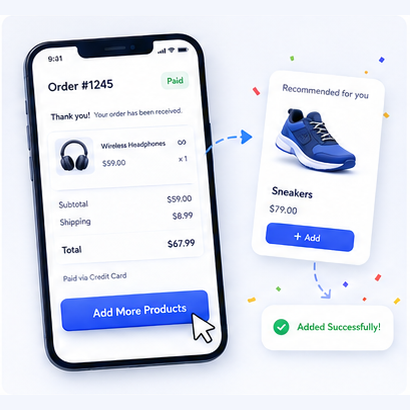
In simple terms, this feature allows customers to modify their orders even after they’ve completed the payment process. Instead of locking the order the moment payment is confirmed, the system keeps it editable for a specific period — usually a few hours or days — giving customers the flexibility to add more items.
Think of it as a “grace period” for order editing. During this window, customers can:
- Add new products to their existing order
- See updated totals and pay the difference
- Complete the addition with just a few clicks
No support tickets. No back-and-forth emails. No frustration.
Key Benefits of Allowing Post-Payment Order Editing
1. Increase Average Order Value (AOV)
This is the most obvious benefit — and potentially the most valuable. When customers can easily add products after purchase, they’re much more likely to do so.
Research shows that stores implementing this feature see increases in order value of up to 35%. Customers who might have hesitated to add an accessory at checkout will happily do so when they can review their order afterward and realize what they’re missing.
2. Reduce Support Requests by Up to 70%
Every time a customer contacts support to ask about adding a product to their order, it costs you time and money. By automating this process, you let customers help themselves. The result? Fewer support tickets, happier staff, and faster resolution times.
3. Improve Customer Satisfaction
Nobody likes feeling stuck. When customers know they can easily modify their order after purchase, they feel more confident buying from you. This builds trust and encourages repeat business.
4. Save Time for Your Team
Instead of manually editing orders, recalculating totals, and sending payment links, your team can focus on what matters — growing your business and serving customers who actually need help.
How Does It Work?
The process is surprisingly simple for both store owners and customers:
For Store Owners:
- Install a plugin that enables post-payment order editing
- Set the time window during which customers can add products (e.g., 2 hours, 24 hours, 3 days)
- Configure which products are available for addition
- That’s it — the system handles the rest
For Customers:
- Complete a purchase as usual
- Visit the thank-you page or check their email for an order link
- Click the “Add Products” button
- Select additional items and complete the payment for the difference
The whole process takes seconds, and customers don’t need to re-enter their payment details.
Essential Features to Look For
If you’re considering adding this capability to your WooCommerce store, here are the features that matter most:
The Game-Changer: Imagine a tool that ticks every single box we just discussed. It exists, and it is the first and only solution of its kind globally. Keep reading to discover how you can access this powerhouse for 3 days at zero cost—no credit card required upfront.
- Post-Payment Editing Window: Customers should only be able to add products within a specific timeframe. This prevents issues with inventory, shipping, and fulfillment. The best plugins let you set this window per order or globally.
- Automatic Coupon Generation: Some advanced solutions automatically generate discount codes after purchase and display them on the thank-you page. This encourages customers to add more items by offering a small incentive.
- Smart Free Shipping Thresholds: Want to encourage customers to add just one more item to qualify for free shipping? The right plugin can display a progress bar showing how close they are to the free shipping threshold — and suggest products to get them there.
- Wallet and Store Credit Integration: If you use WooWallet or similar plugins, showing the customer’s wallet balance on the thank-you page can motivate them to use their store credit for additional purchases.
- SMS and Notification Support: Keep customers informed with automated notifications when they add products to their order. This works with any SMS system or webhook integration.
- Drag-and-Drop Thank-You Page Design: The thank-you page is prime real estate for upselling. The ability to customize its layout — placing product recommendations, wallet balances, and coupons exactly where they’ll have the most impact — is a powerful feature.
- Manual Extension for Special Cases: Sometimes, a customer needs a little extra time. The ability to manually extend the addition window for specific orders is invaluable for handling special situations.
- Unique Short Links for Each Order: Each order should have a unique, secure link that customers can use to access their order and add products. This makes the process seamless and secure.
- Guest User Support: Not all your customers will have accounts. Make sure your solution works for both logged-in users and guest customers.
Common Use Cases
Scenario 1: The Forgotten Accessory
A customer buys a laptop but forgets to add a carrying case. With post-payment editing, they can add it immediately after purchase without placing a second order.
Scenario 2: The Missed Discount Threshold
A customer’s order is $48, but free shipping starts at $50. They see the free shipping progress bar, add a $5 item, and suddenly they’re getting free shipping — and you’ve increased your AOV.
Scenario 3: The Impulse Add-On
After completing a purchase, a customer sees a complementary product recommendation on the thank-you page. They click to add it, and your store gets an additional sale with zero marketing spend.
How to Implement This in Your WooCommerce Store
Implementing post-payment order editing doesn’t require custom coding or complex development. Here’s the straightforward approach:
Step 1: Choose the Right Plugin
Look for a plugin that offers all the features we’ve discussed: time-limited editing, automatic coupon generation, free shipping thresholds, and guest user support. The plugin should be lightweight, fast, and compatible with your version of WordPress and WooCommerce.
Step 2: Configure Your Settings
Set the time window during which customers can edit their orders. Start with 24 hours and adjust based on your shipping and fulfillment processes.
Step 3: Customize the Thank-You Page
Design your thank-you page to include product recommendations, wallet balances, and any other elements that encourage additional purchases.
Step 4: Test the Flow
Place a test order and go through the entire customer experience. Make sure everything works smoothly and that customers can easily add products.
Step 5: Launch and Monitor
Once everything is set up, go live and monitor the results. Track your average order value, support ticket volume, and customer feedback.
Requirements
Before implementing this feature, make sure your store meets these basic requirements:
- WordPress 6.5 or higher
- WooCommerce 9.7 or higher
- UniCUBE extension enabled (for certain advanced features)
Final Thoughts
Allowing customers to add products to an order after payment is one of the simplest yet most effective ways to increase revenue, reduce support tickets, and improve customer satisfaction.
Customers want flexibility. They want to feel in control of their purchases. By giving them the ability to modify orders after checkout, you’re not just selling more products — you’re building a better shopping experience.
And in today’s competitive e-commerce landscape, that’s exactly what sets successful stores apart.
Your Exclusive Invitation: As promised, here is the moment of truth. The plugin I have been hinting at is the only one in the world engineered specifically for post-payment order edits. Don’t just take my word for it—activate your 3-day free trial right now. See the impact on your AOV, and if you love the results, keep it. If not, you have lost absolutely nothing. Start your journey to higher profits today!
Frequently Asked Questions
Can customers add products to their order after payment in WooCommerce by default?
No. WooCommerce doesn’t provide this feature out of the box. You’ll need a dedicated plugin to enable post-payment order editing.
Is it safe to let customers edit orders after payment?
Yes — as long as you set a time limit and use a secure plugin. The best solutions use encrypted links and restrict editing to a specific window.
Does this work for guest customers?
Yes. Advanced solutions support both registered users and guest customers, so everyone can benefit from this feature.
Will this affect my inventory management?
Properly configured plugins update inventory in real-time when customers add products, so your stock levels stay accurate.
Can I manually extend the editing time for specific customers?
Yes. Many plugins allow store admins to manually extend the editing window for individual orders — perfect for special cases or VIP customers.
Add to Order – Let Customers Add Products After Placing Order in WooCommerce
Original price was: 82 $.40 $Current price is: 40 $.